How It Works

From install to advanced workflows

A complete guide to YT Transcript Search — searching, Timestamp Links, Teleprompter, export, themes, and more.

Quick start

Up and running in under a minute

01
Install

Add the extension from the Chrome Web Store or Edge Add-ons. No account required.

02
Open a video

Go to any YouTube video with captions and click the extension icon.

03
Load transcript

Click Load Transcript. The full timed transcript appears in seconds.

04
Search & jump

Type any word or phrase. Click a result to jump straight to that moment.

Interface

The overlay at a glance

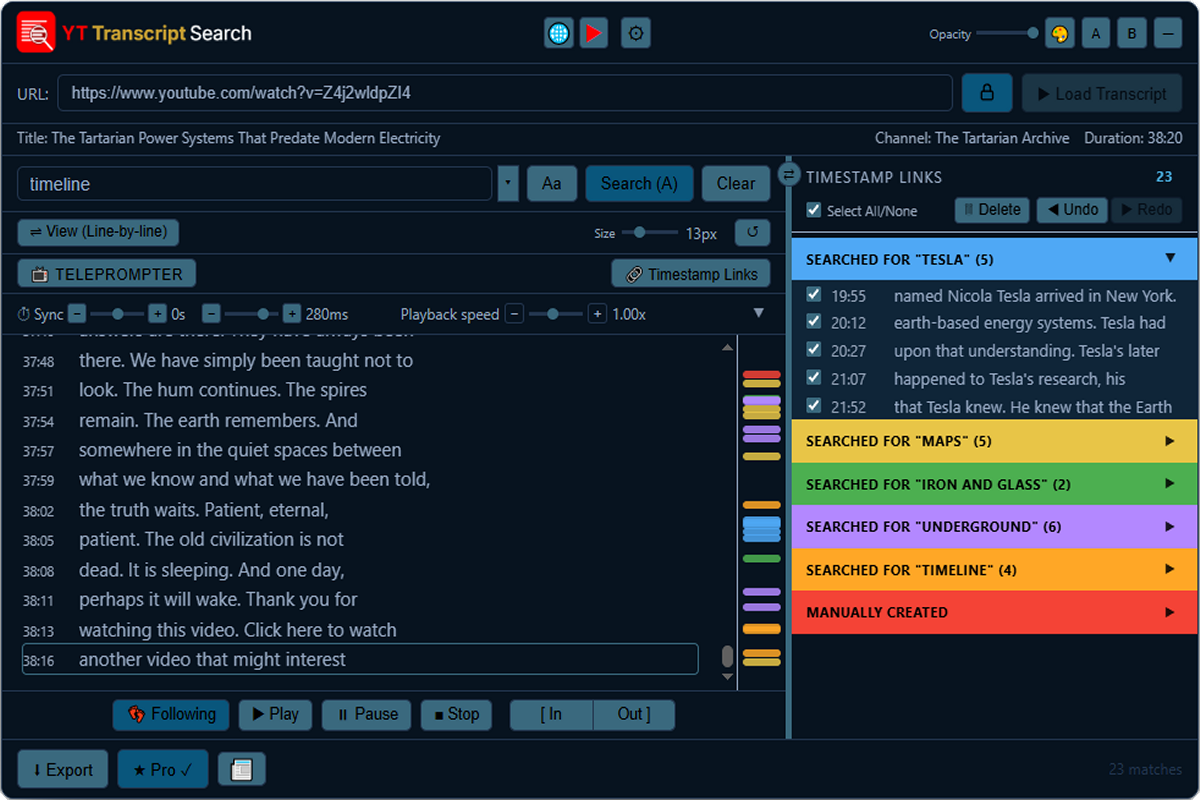
The panel is movable (drag the top bar) and resizable (drag edges or corners). The default theme on first load is Deep Ocean.

YT Transcript Search main interface — Deep Ocean theme

Main interface in the default Deep Ocean theme — colour-coded Timestamp Links, highlighted matches, Append Search active.

Loading a transcript

Straight from YouTube’s captions

Transcripts come from YouTube’s own caption data. On a watch page, click Load Transcript. You can also paste any watch URL into the URL field.

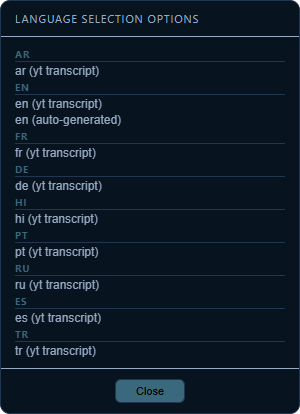
Language selection menu

Language selection menu — choose the caption track that best matches the video.

Timestamp Links

Build a curated list of moments

Every search creates a coloured batch in the left pane. Manually added lines appear under a “MANUALLY CREATED” header.

View & playback

Read, follow, and control the video

Themes, opacity & layout

Make it yours

Teleprompter

Scroll in sync with the video ★ Pro

Opens a dedicated floating panel that scrolls the transcript with the video — ideal for voice-overs, practice, or following along without the main overlay.

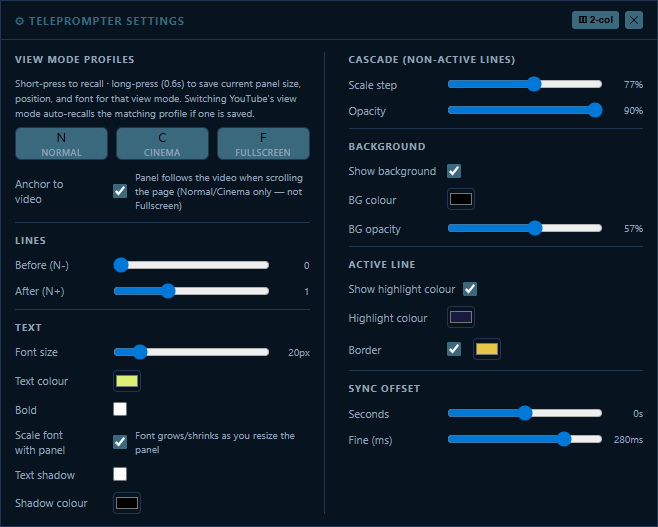
Teleprompter Settings two-column layout

Teleprompter Settings (2-column) — view-mode profiles, lines, text, cascade, background, active-line highlight, sync offset.

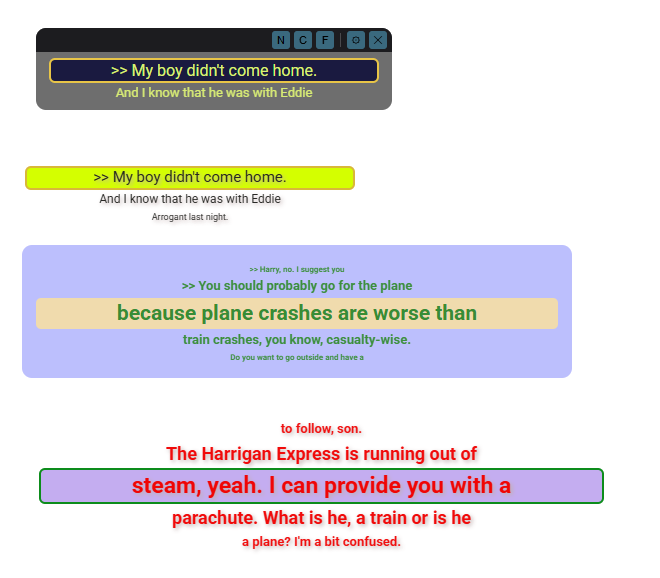
Teleprompter visual style examples

Examples of different teleprompter appearances — high-contrast dark panels to bright highlighted styles.

Export

Take your results with you

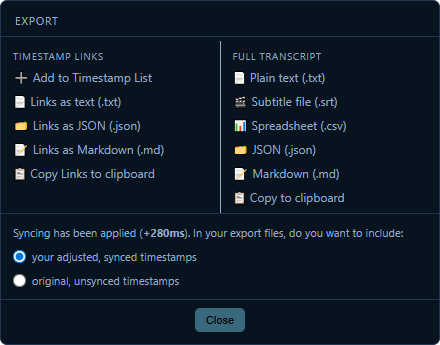
Click Export for two columns: Timestamp Links and Full Transcript. When a sync offset is active, you can choose adjusted or original timestamps.

Export menu

Export menu — Timestamp Links left, full transcript right, plus synced vs original timestamps.

Free vs Pro

Fully usable free; Pro unlocks the advanced tools

Free includes: load and search transcripts, colour-coded Timestamp Links, basic text export and clipboard, themes, opacity, layout A/B, font size, sync offset, transport controls, and Following mode.

Pro unlocks: Teleprompter (full customisation and profiles), Append Search, URL lock, language picker, import chapters, manual add to Timestamp List, SRT/CSV/JSON/Markdown export, longer history and undo depth, and minimap.

Activate Pro with the ★ Pro button — enter the email used at purchase and your licence key. Verification is local and cryptographic.

Explore Free vs Pro interactively →
Keyboard shortcuts

Keep your hands on the keyboard

Open the full list any time via the ⚙ button (Shortcuts tab).

Run searchEnter
Previous search stateCtrl+Z
Next search stateCtrl+Shift+Z
Seek to segmentClick line
Font size up/downCtrl + scroll
Reset font sizeCtrl+0
Reset sync offsetDouble-click slider
Save layout A or BLong-press A / B
Recall layout A or BShort-press A / B
Language pickerLong-press Load Pro
Toggle Append SearchLong-press Search Pro
Full clear (incl. transcript)Long-press Clear
Tips

Work faster

After an update

If the extension stops responding after an update, refresh the YouTube tab. That reloads the content script with the new version.

Start searching transcripts today

Free to install. Works on any YouTube video with captions